
Sometimes tasks, reports, or batch processes can take a long time to complete. To keep people productive in the meantime, companies often use Business Central’s job queue to run processes in the background. If something goes wrong and an important background process stops, or isn’t scheduled for some reason, being notified about the issue can help you react quickly to resolve it.
In the upcoming 2024 Wave 2 release of Dynamics 365 Business Central, a new feature will allow users to receive external notifications when job queue entries fail. This enhancement is designed to help businesses stay informed about issues that may affect their operations.
With this feature, users will be instantly alerted if a job in the queue doesn’t complete successfully. This means you can take immediate action to resolve problems, minimizing potential disruptions to your workflow. Instead of waiting to discover issues during regular checks, you’ll be proactively informed, allowing for quicker responses.
Go to the Global search bar and type “ASSISTED SETUP”. In the assisted setup there is a one setup like setup Job Queue Notification, click on that.

To be notified about issues with job queue processing, start by running the Set up Job Queue Notifications assisted setup guide from the Assisted Setup page. The guide will help you set up your notifications.

Click on next for upcoming process.

Notify the user who initiates background tasks: This Boolean have use for whether the user who initiates a background task should receive a notification when the task is failed.
Notify these job queue notification administrators: This Boolean is use for Job queue notification administrators should receive a notification when any task is failed in Job Queue.
Assign User: assign user who receive the notification when job queue task is failed.
Then click on next for upcoming process.

Choose Next on the second step to specify how to send notifications. In addition to In-product notifications, you can choose to manage your notifications through external business events by turning on the Control notifications with business events (preview) toggle.
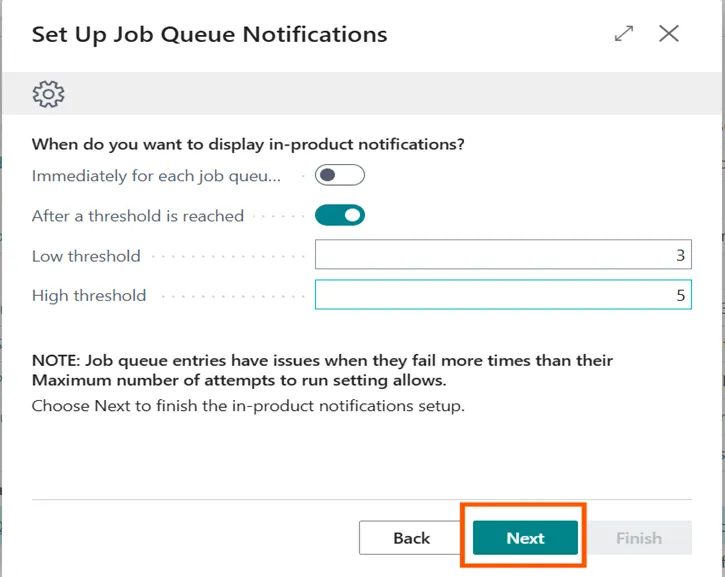
Immediately for each job queue entry: This Boolean is use for the user should receive a notification once the task is failed.
After a threshold is reached: This Boolean is use for the user should receive a notification when the count of failed jobs reaches the low threshold.
Low threshold: This field Specifies the low threshold for the cue set up of failed jobs.
High threshold: This field Specifies the high threshold for the cue set up of failed jobs.
Simply click on Next.

Choose Create an automated flow from Job Queue Notification template to open the Job Queue Entries page. On the Job Queue Entries page, choose Automate, Power Automate, and then Create automated flow to open the Create a flow page. The Create a flow page contains a Notify on Outlook or Teams when Job Queue in Business Central fails template.

Click on the automate job queue Notification and create the flow.

Then click on finish.
Note: This flow work in only premium license without license you notification cannot be get.